Preview and Test Send
Preview helps verify a notification before enabling it.
Open Preview
From a saved notification:
- Open the notification editor.
- Click Preview email in the sidebar.
Or open:
/admin/super-mailer/notifications/123/preview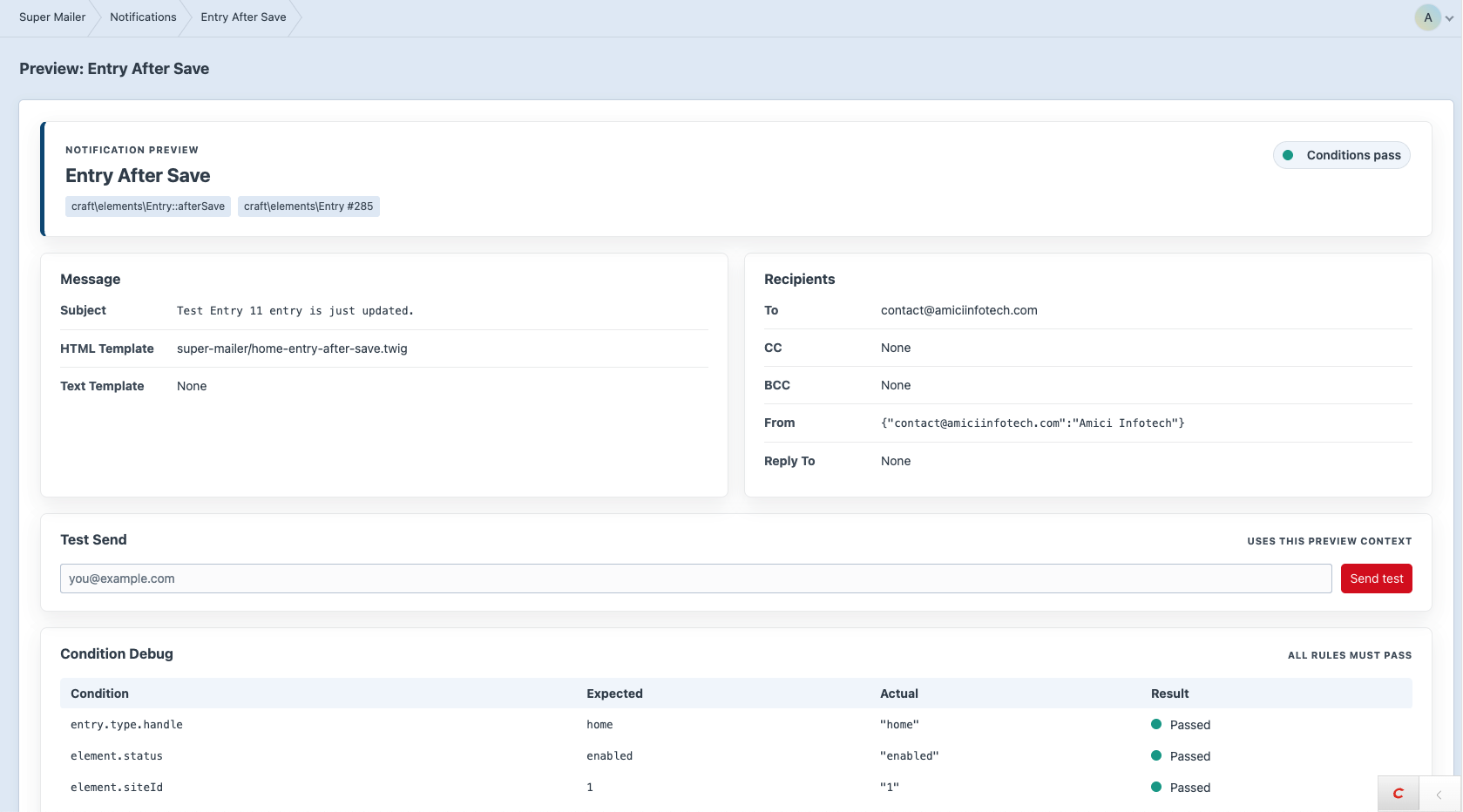
Preview a Specific Element
Pass an id query parameter. Super Mailer tries to find a matching element for the selected event and use it for preview.
/admin/super-mailer/notifications/123/preview?id=456Preview Sections
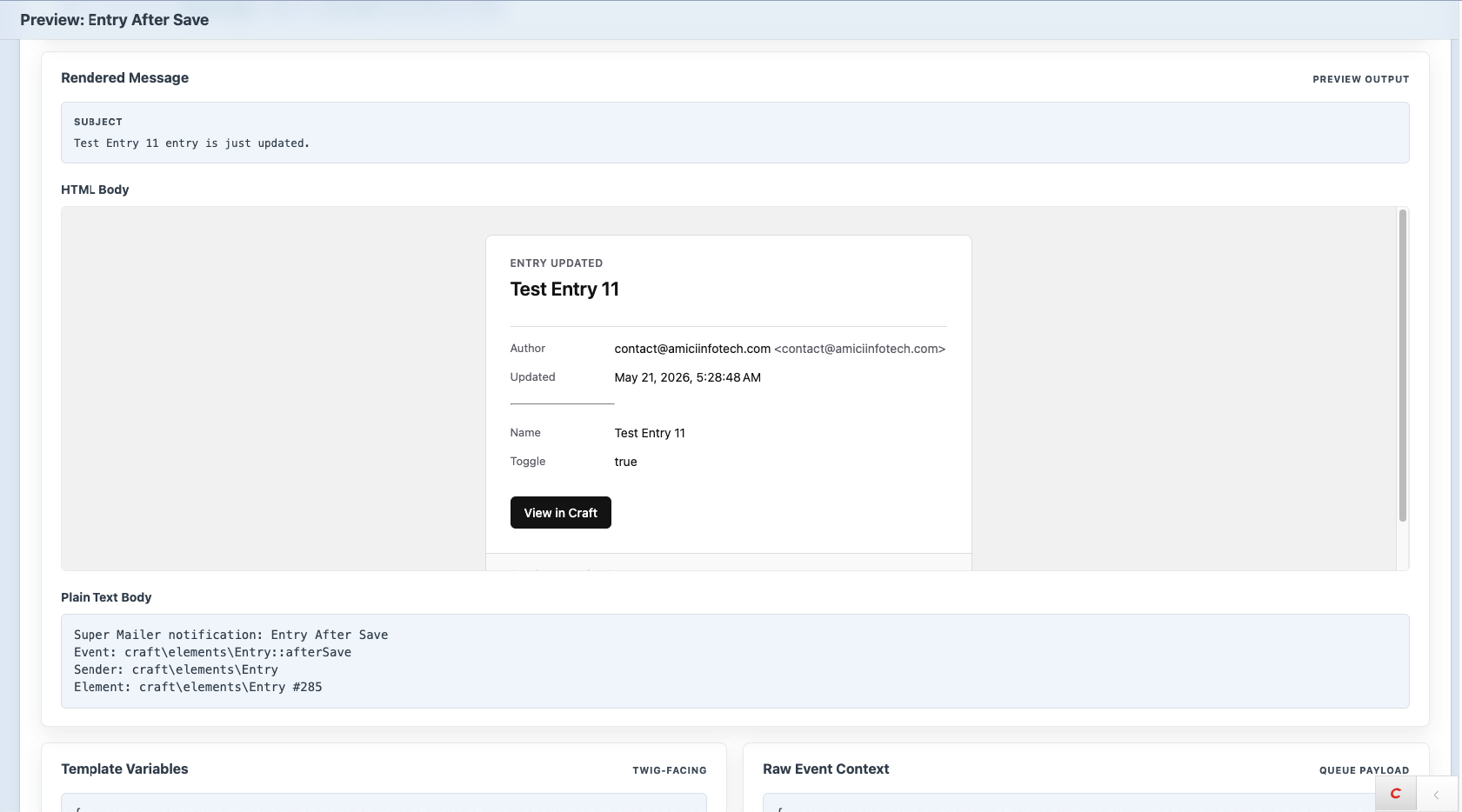
The preview page shows:
- Notification/event summary.
- Rendered subject.
- Rendered recipients.
- Test send form.
- Condition debug.
- HTML body preview.
- Plain text body.
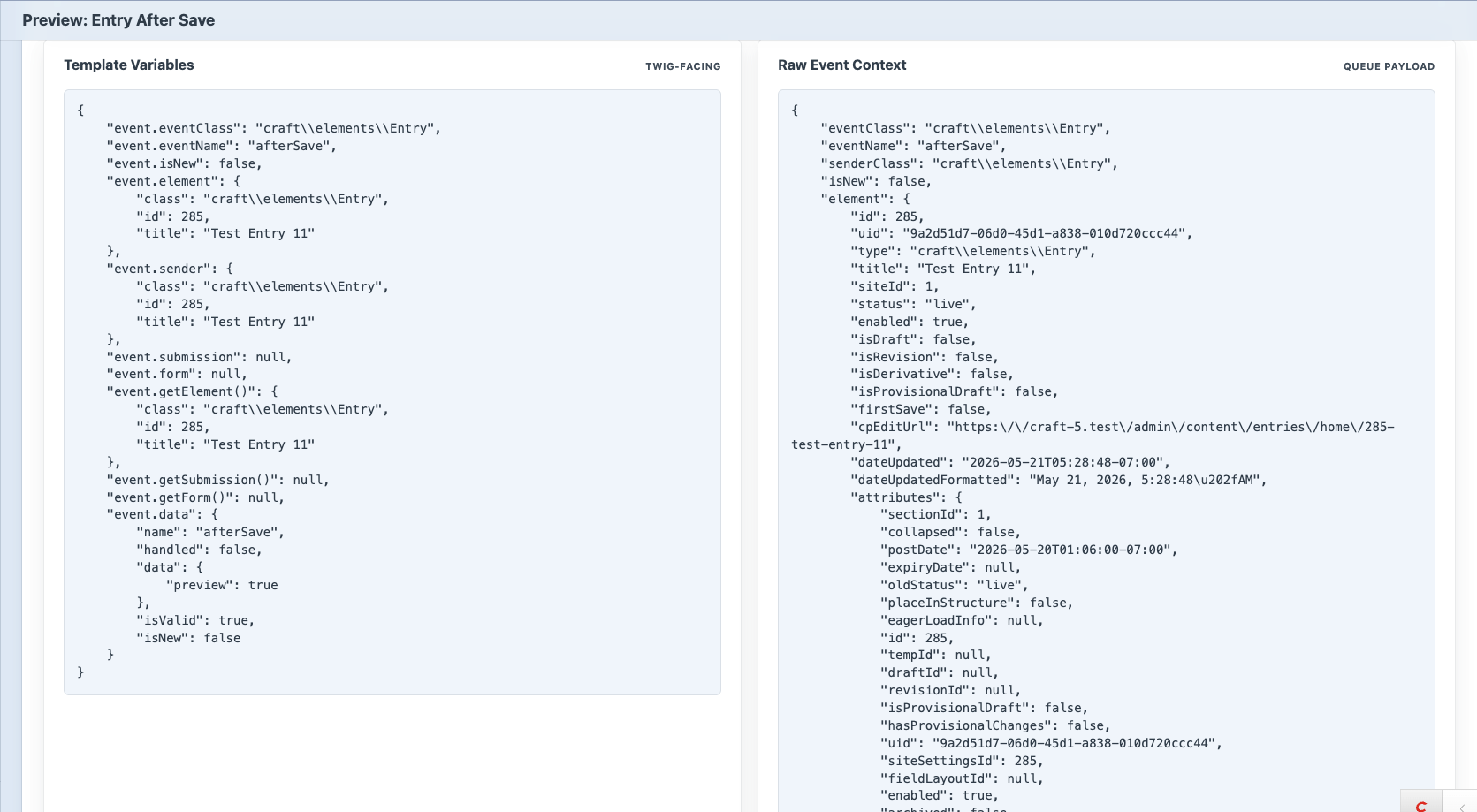
- Template variables.
- Raw event context.
Template Variables
Template variables show what Twig templates can use. Availability depends on the selected event and element type. Do not assume every notification has the same event properties.
event.element
event.getElement()
event.data
Raw Event Context
Raw context is the serialized queue payload. It is useful for debugging logs and resends, but templates should generally use event.
Condition Debug
Condition debug shows each configured condition row with:
- Field.
- Comparison.
- Expected value.
- Actual value.
- Pass/fail result.
This makes negated rows easier to read, for example does not contain can pass when the actual value is not in the expected list.
Test Send
Use Test Send to send the currently previewed notification to one email address.
Test sends:
- Use the same preview context.
- Override the To recipient with the test email.
- Do not send CC/BCC.
- Still log success or failure.
Render Errors
If an HTML or plain text template fails to render, the preview page shows the error near that body section. The email log will also store failures that happen during queued sends.