Creating Notifications
Basic Notification
- Go to Super Mailer -> Notifications.
- Click New Notification.
- Enter a title.
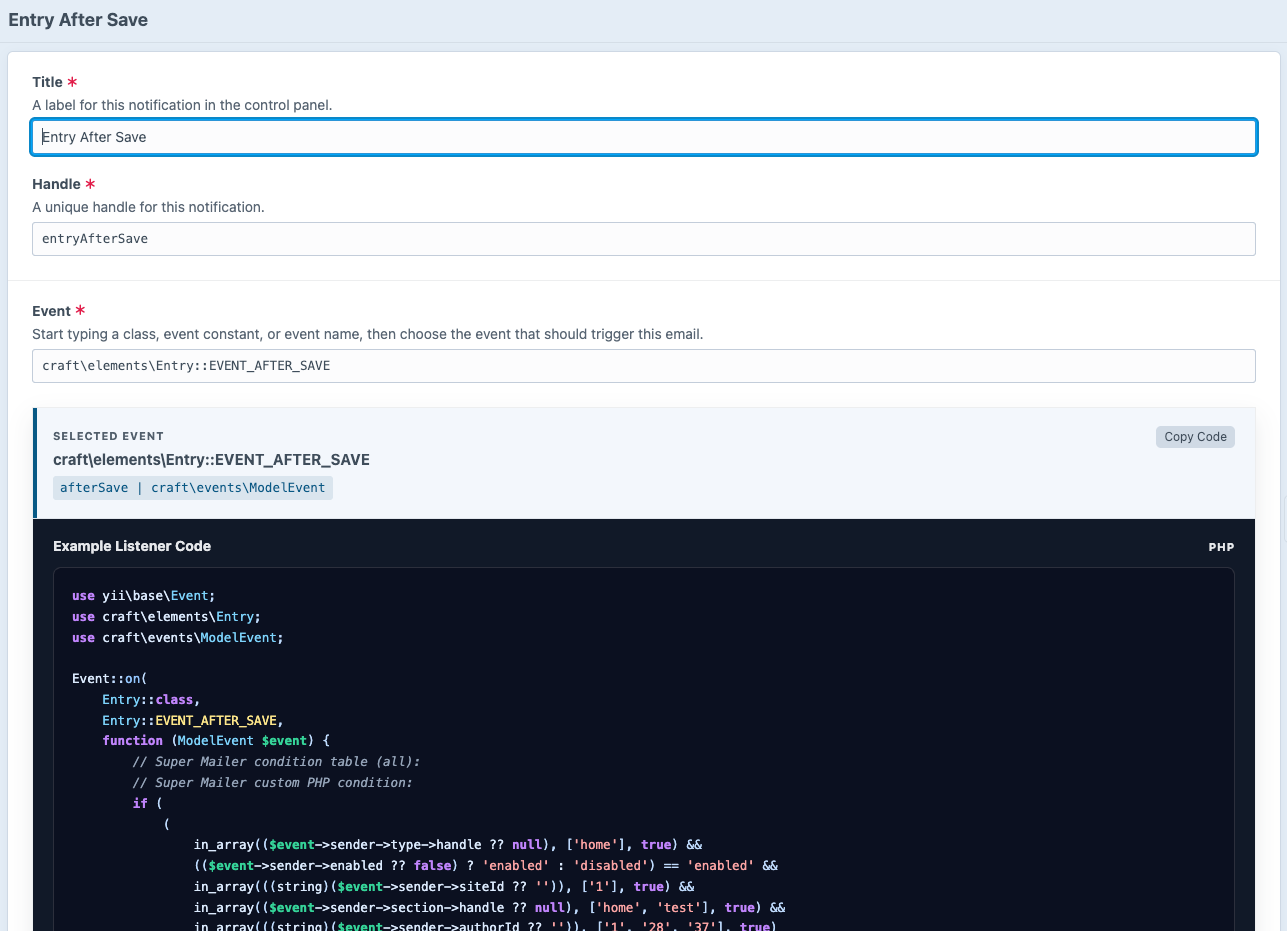
- Choose an event.
- Enter recipients.
- Enter a subject.
- Add an HTML template path, a plain text template path, or both.
- Save.
- Open Preview.
- Send a test email.
- Enable the notification.
Event Picker
Start typing a class name, event constant, or event name.
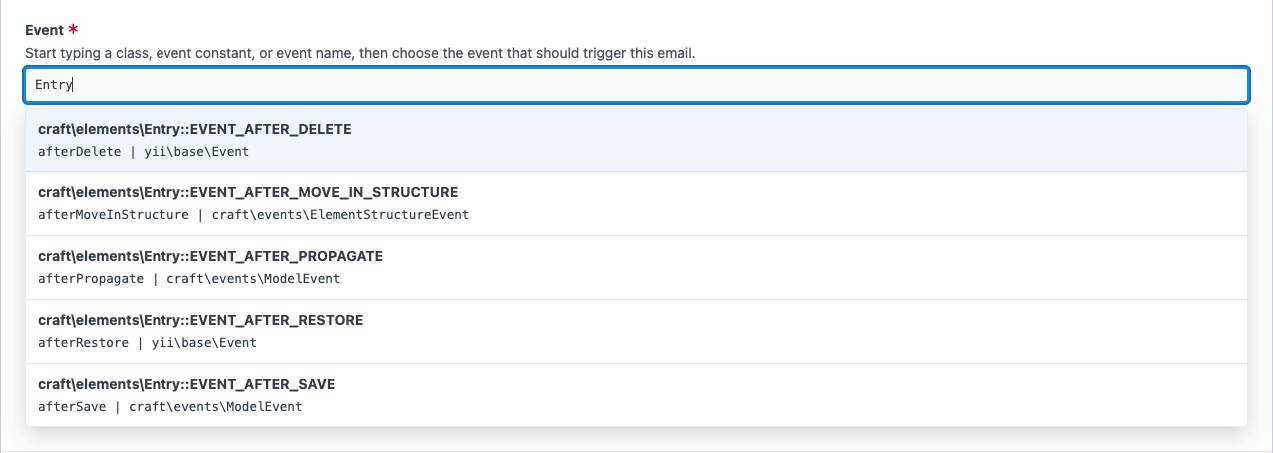
Examples:
craft\services\Elements::EVENT_AFTER_SAVE_ELEMENT
vendor\package\elements\Submission::EVENT_PROCESS_SUBMISSION
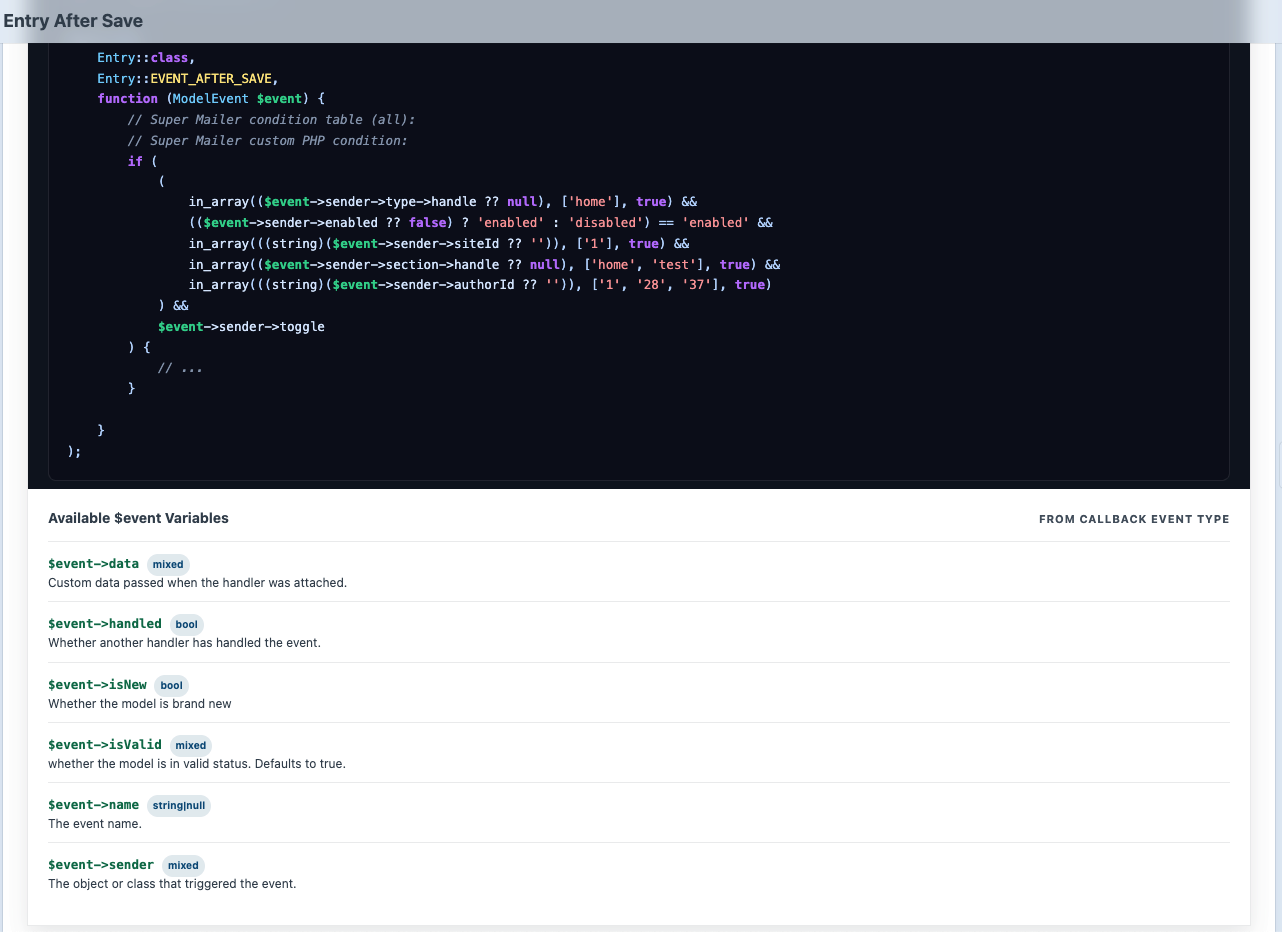
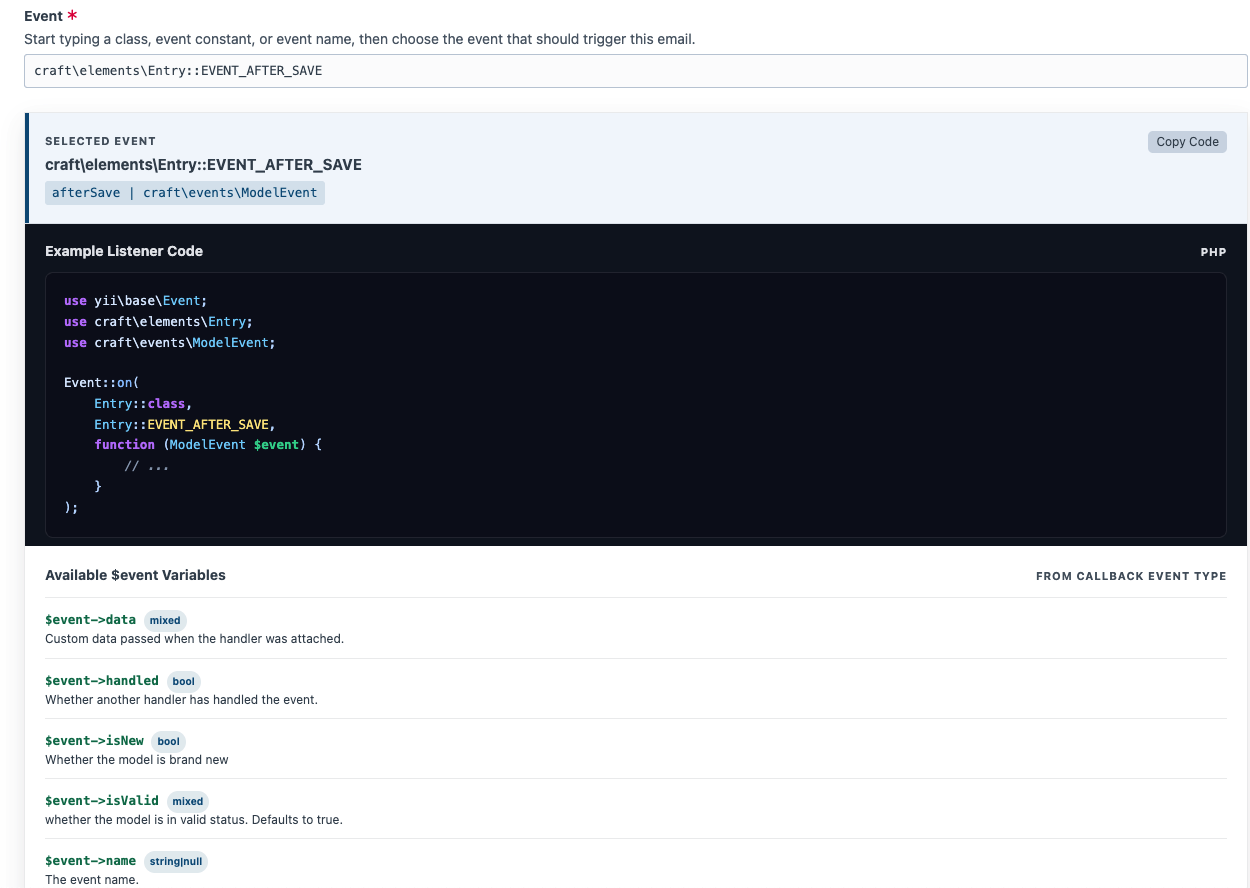
The selected event controls which event is registered and what context will be available.
Conditions
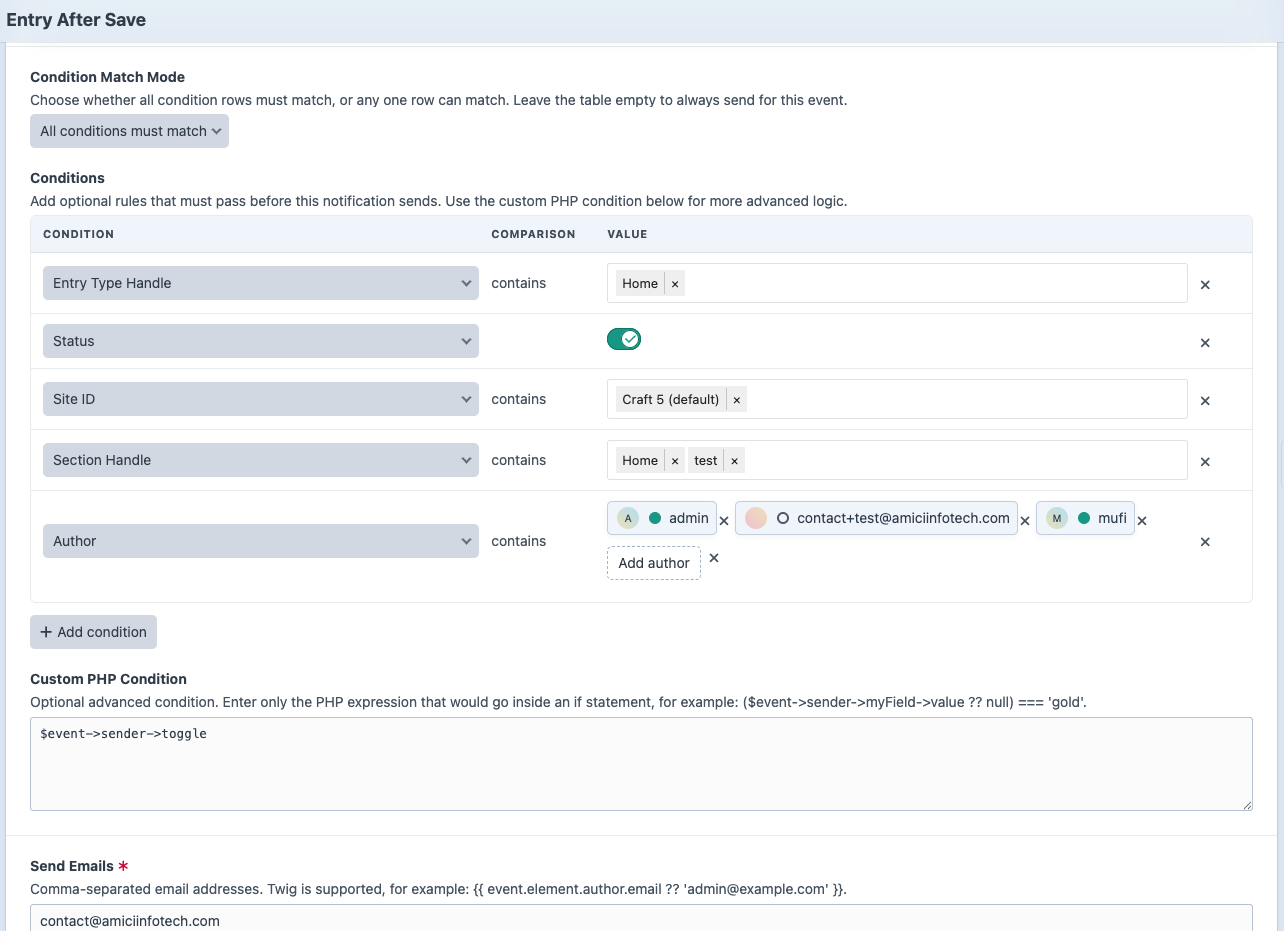
The condition table changes based on the selected event. Super Mailer shows filters that are useful for that event and hides internal values that are unlikely to be valid notification rules.
Depending on the selected event, condition rows may include:
- Element status, site, and new-event checks.
- Entry section, entry type, and author selectors.
- Category group selectors.
- Custom field layout filters with configured field options.
- Submission form, status, and user filters.
- Commerce product type, store, order status, customer, plan, gateway, and simple boolean filters.
Rows support is, is not, contains, and does not contain where appropriate. Toggle rows use a switch instead of a comparison dropdown. Use the move handle to reorder rows for readability.
Recipients
Recipient fields accept comma-separated email addresses:
admin@example.com, support@example.comTwig is supported:
{{ event.element.author.email ?? 'fallback@example.com' }}Sender and Reply-To
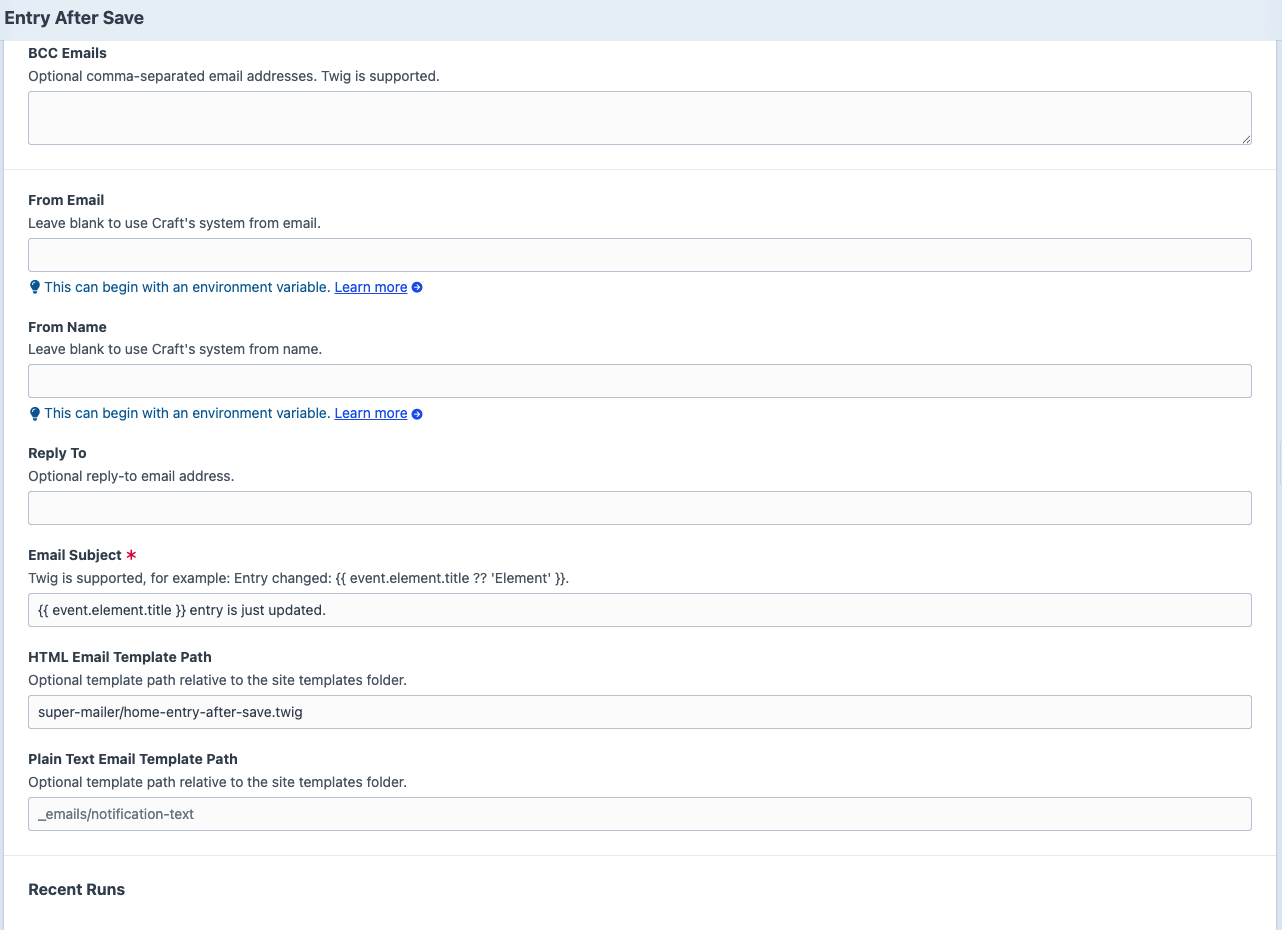
Leave From Email and From Name blank to use Craft's system email settings.
Use Reply To when the selected event exposes an email address that should receive replies:
{{ event.element.email ?? null }}Templates
Template paths are relative to the Craft site templates folder. You can configure HTML, plain text, or both.
super-mailer/contact-form-submission
_emails/entry-updated
Enable and Disable
Disabled notifications do not register active sends. Use the element index status action or the editor details sidebar.
Duplicate
Duplicate an existing notification to reuse event, recipient, condition, and template settings. The copied notification receives a unique title and handle.